Elementor Pro Common Errors & Fixes (2026): Complete Troubleshooting Guide
Elementor Pro is one of the most reliable WordPress page builders, but like any complex plugin, you may occasionally encounter technical issues. Most problems are caused by server configuration, outdated software, plugin conflicts, caching, or incorrect settings rather than Elementor itself.
This guide covers the most common Elementor Pro errors and practical troubleshooting steps to help you get your website working again.
Why Elementor Errors Occur
The most common causes include:
- Outdated WordPress version
- Old PHP version
- Low PHP memory limit
- Plugin conflicts
- Theme conflicts
- Aggressive caching
- JavaScript errors
- Server firewall restrictions
- Expired license
- Corrupted updates
Error 1: Elementor Editor Not Loading
Symptoms
- Infinite loading screen
- Blank editor
- Editor never opens
Possible Causes
- Plugin conflict
- Low PHP memory
- JavaScript errors
- Server timeout
Fix
✔ Update WordPress
✔ Update Elementor Free
✔ Update Elementor Pro
✔ Increase PHP Memory Limit
✔ Disable unnecessary plugins
✔ Clear cache
✔ Check browser console for JavaScript errors
Error 2: Stuck on Loading Screen
Many users see the loading animation forever.
Solutions
- Clear browser cache.
- Disable optimization plugins temporarily.
- Switch to a default WordPress theme for testing.
- Increase
max_execution_timeif your server allows it. - Verify that required PHP extensions are enabled.
Error 3: CSS Not Updating
Symptoms
- Styling changes don’t appear.
- Old design remains visible.
- Fonts or colors don’t update.
Fix
Go to:
Elementor → Tools
Use:
- Regenerate CSS & Data
- Sync Library (if needed)
Then:
- Clear plugin cache
- Clear server cache
- Clear CDN cache
- Hard refresh your browser
Error 4: White Screen of Death
A blank white page usually indicates a PHP fatal error.
Common Causes
- Memory exhaustion
- Plugin conflict
- Corrupted update
Solution
- Enable WordPress debugging (on a staging site if possible).
- Increase PHP memory limit.
- Disable recently installed plugins one by one.
- Reinstall Elementor if necessary.
Error 5: HTTP 500 Internal Server Error
This is generally a server-side issue.
Possible reasons:
- Corrupt
.htaccess - PHP timeout
- Server misconfiguration
- File permission issues
Fix
- Regenerate
.htaccessby resaving Permalinks. - Review server error logs.
- Contact your hosting provider if the issue persists.
Error 6: Memory Limit Reached
Low PHP memory can prevent Elementor from functioning correctly.
Symptoms
- Slow editor
- Loading failures
- Fatal errors
Fix
Increase your site’s PHP memory limit according to your hosting environment and WordPress requirements.
Error 7: License Activation Failed
Causes
- Expired subscription
- Incorrect login
- Firewall blocking requests
- Server connectivity issues
Solution
- Confirm your subscription is active.
- Reconnect your Elementor account.
- Verify that your server can communicate with Elementor’s licensing service.
- Contact Elementor support if the issue continues.
Error 8: Widget Panel Missing
Sometimes the left widget panel disappears.
Fix
- Disable browser extensions temporarily.
- Clear browser cache.
- Update Elementor.
- Test for plugin conflicts.
- Try another browser.
Error 9: WooCommerce Widgets Not Working
Possible causes:
- WooCommerce outdated
- Theme conflict
- Template conflict
Solution
- Update WooCommerce.
- Update Elementor.
- Check template assignments.
- Test with a default theme if necessary.
Error 10: Slow Elementor Website
Website speed depends on many factors beyond Elementor.
Improve Speed By
- Using quality hosting
- Optimizing images
- Limiting animations
- Removing unused plugins
- Using caching
- Minimizing third-party Elementor addons
Error 11: Mobile Layout Problems
Common issues include:
- Text overflowing
- Buttons misaligned
- Images too large
- Incorrect spacing
Fix
Use Elementor’s responsive controls to adjust:
- Font sizes
- Padding
- Margins
- Container direction
- Element visibility
Always test on desktop, tablet, and mobile before publishing.
Error 12: Plugin Conflicts
Some plugins may interfere with Elementor.
How to Check
- Create a backup.
- Deactivate non-essential plugins.
- Test Elementor.
- Reactivate plugins one at a time to identify the conflict.
Error 13: Theme Conflicts
Although Elementor works with many themes, conflicts can occur.
Troubleshooting
Temporarily switch to a default WordPress theme or a lightweight Elementor-compatible theme to determine whether the issue is theme-related.
Safe Mode
Elementor includes Safe Mode, which temporarily disables possible theme and plugin conflicts within the editor.
Use Safe Mode when:
- Editor won’t load
- Widgets disappear
- Unexpected errors occur after updates
It’s a useful diagnostic tool before making broader changes to your website.
Expert Troubleshooting Tips
✔ Keep WordPress updated.
✔ Update Elementor Free and Pro together.
✔ Use a supported PHP version.
✔ Maintain regular backups.
✔ Test major updates on a staging site.
✔ Avoid installing multiple Elementor addon packs with overlapping functionality.
✔ Keep your theme lightweight.
✔ Monitor server resources if you manage high-traffic websites.
Common Mistakes
❌ Updating on a live production site without a backup.
❌ Ignoring PHP version requirements.
❌ Installing too many page builder addons.
❌ Using outdated themes.
❌ Not clearing caches after making changes.
Frequently Asked Questions
Why is Elementor stuck on loading?
This is commonly caused by plugin conflicts, JavaScript errors, insufficient server resources, or outdated software.
Why aren’t my style changes visible?
Try regenerating CSS, clearing caches, and performing a hard browser refresh.
Why did Elementor stop working after an update?
A plugin or theme compatibility issue may be responsible. Check for updates and test for conflicts.
Is Elementor Safe Mode secure?
Yes. Safe Mode is intended for troubleshooting and only affects your editing session.
Should I reinstall Elementor?
Only after checking for conflicts, updates, caching issues, and server configuration problems.
Conclusion
Most Elementor Pro problems have straightforward solutions once you identify the underlying cause. Keeping WordPress, Elementor, themes, and plugins up to date, using reliable hosting, and following good optimization practices can prevent many issues before they occur.
Rather than applying multiple fixes at once, troubleshoot methodically—test one change at a time, verify the result, and always work from a recent backup when making significant changes.
Neve vs Astra 2026 – Complete Speed, SEO, WooCommerce & Customization Comparison
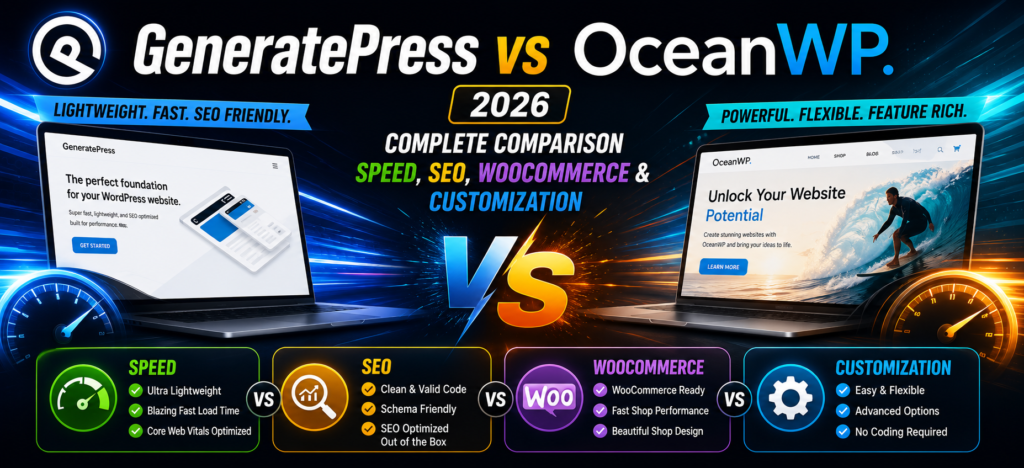
GeneratePress vs OceanWP 2026 – Which WordPress Theme Is Better for Speed, SEO & WooCommerce?
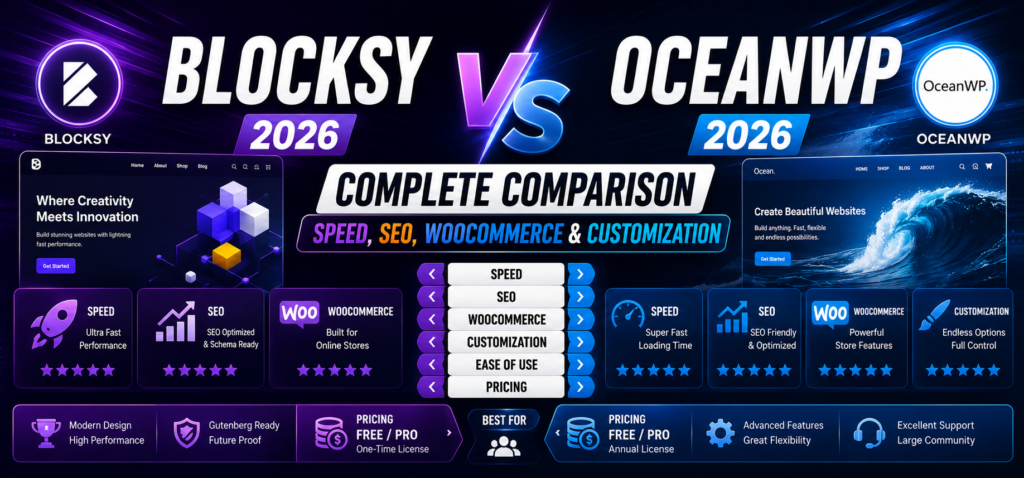
Blocksy vs OceanWP 2026 – Complete Speed, SEO, WooCommerce & Customization Comparison
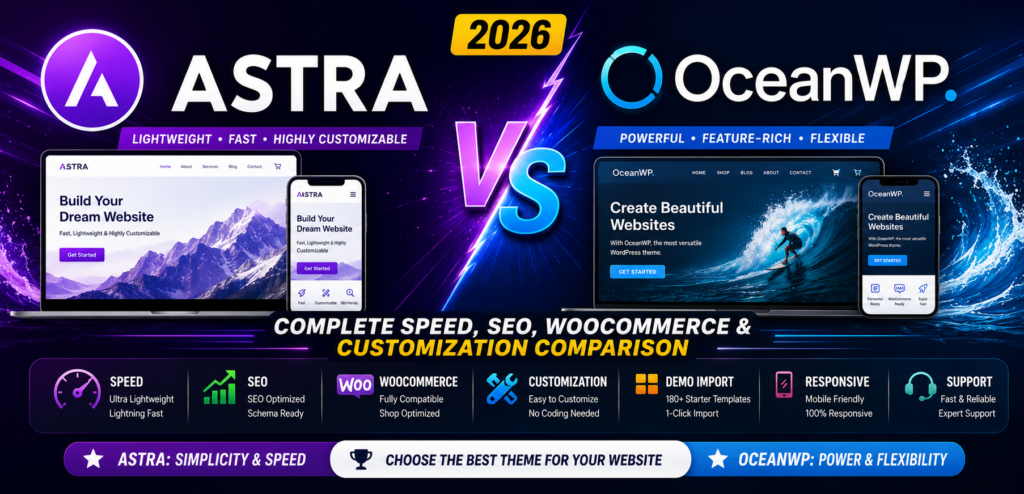
Astra vs OceanWP 2026 – Complete Speed, SEO, WooCommerce & Customization Comparison
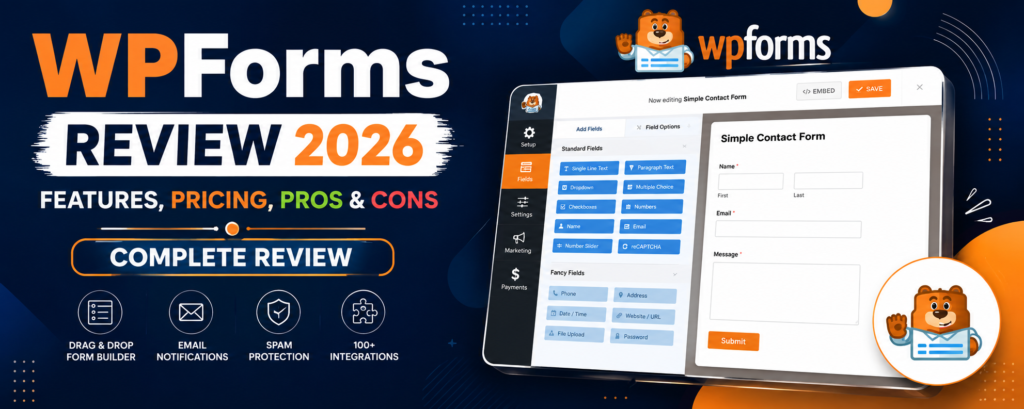
WPForms Review 2026 – Features, Pricing, Pros & Cons & Complete Review
SEOPress Review 2026 – Features, Pricing, Pros & Cons & Complete Review

All in One SEO Review 2026 – Features, Pricing, Pros & Cons & Complete Review