
Elementor Pro Widgets Explained (2026): Complete Guide to Every Premium Widget
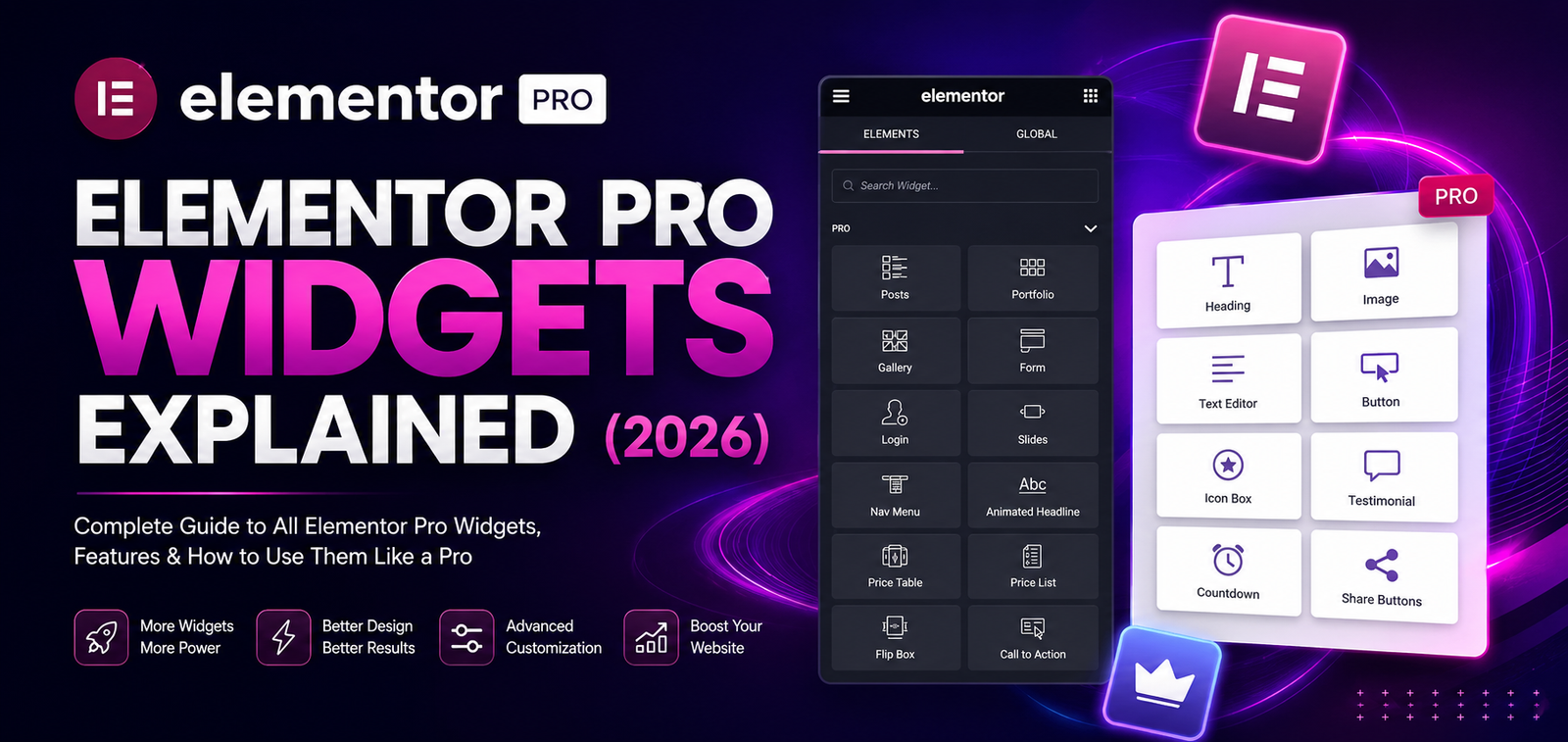
Table of Contents
- Introduction
- What Are Elementor Pro Widgets?
- Marketing Widgets
- Content Widgets
- WooCommerce Widgets
- Theme Widgets
- Dynamic Widgets
- Social Widgets
- Utility Widgets
- Best Widgets for Different Websites
- Performance Tips
- FAQs
- Conclusion
Introduction
Widgets are the building blocks of every Elementor page. Each widget adds a specific piece of functionality, such as text, images, forms, testimonials, pricing tables, or WooCommerce products.
While the free version of Elementor includes a solid collection of basic widgets, Elementor Pro unlocks dozens of advanced widgets designed for professional websites, online stores, landing pages, and marketing campaigns.
Understanding what each widget does—and when to use it—can help you create better layouts while keeping your pages organized and efficient.
What Are Elementor Pro Widgets?
A widget is a drag-and-drop element that performs a specific function on a page.
Instead of writing code, you simply drag a widget into your layout and customize it using Elementor’s visual editor.
Common examples include:
- Heading
- Button
- Image
- Video
- Form
- Posts
- Navigation Menu
- Price Table
- Countdown Timer
Each widget includes styling, layout, and responsive controls.
Marketing Widgets
Form Widget
One of the most valuable Elementor Pro widgets.
Use it for:
- Contact forms
- Quote requests
- Newsletter signups
- Appointment booking
- Customer inquiries
It supports multiple field types, validation, and integrations with various email marketing and automation services.
Call to Action Widget
Designed to encourage visitors to take action.
Common uses:
- Book Now
- Get Started
- Download Guide
- Contact Us
- Buy Now
Countdown Widget
Perfect for:
- Limited-time offers
- Product launches
- Holiday sales
- Webinar registrations
Adding a countdown can help create urgency for time-sensitive campaigns.
Content Widgets
Posts Widget
Displays blog posts automatically.
Useful options include:
- Grid layout
- List layout
- Pagination
- Filtering
- Featured images
- Excerpts
Ideal for blog homepages and category sections.
Portfolio Widget
Designed to showcase:
- Creative work
- Photography
- Architecture
- Graphic design
- Agency projects
Supports attractive layouts and filtering options.
Table of Contents Widget
Automatically generates a table of contents based on page headings.
Benefits include:
- Easier navigation
- Better user experience
- Improved readability for long articles
WooCommerce Widgets
Elementor Pro includes widgets specifically for online stores.
Product Widget
Display:
- Featured products
- Latest products
- Sale items
- Best-selling products
Product Categories Widget
Showcase WooCommerce product categories in a clean, visual layout to help customers browse your store.
Add to Cart Widget
Create custom product pages with visually integrated add-to-cart buttons while maintaining WooCommerce functionality.
Theme Widgets
Theme Builder uses several dedicated widgets.
Examples include:
- Site Logo
- Site Title
- Page Title
- Post Title
- Featured Image
- Author Box
- Post Navigation
These widgets automatically display information based on the current page or post.
Dynamic Widgets
Dynamic content allows widgets to display information automatically from your WordPress site.
Examples:
- Post title
- Featured image
- Author name
- Publish date
- Custom fields
- Taxonomies
This is especially useful for blogs, directories, portfolios, and custom post type websites.
Social Widgets
Popular social widgets include:
Share Buttons
Allow visitors to share your content on supported social platforms.
Facebook Widget
Display selected Facebook content where supported by current integrations.
Social Icons
Add links to:
- X (formerly Twitter)
- YouTube
Customize icon size, spacing, colors, and alignment to match your branding.
Utility Widgets
Nav Menu
Create responsive navigation menus without coding.
Login Widget
Useful for:
- Membership websites
- Online courses
- Client portals
Search Widget
Add a search bar to:
- Headers
- Sidebars
- Landing pages
- Blog layouts
Breadcrumbs
Improve navigation by displaying the visitor’s current location within the site hierarchy, when used with a compatible SEO solution.
Best Widgets for Different Websites
Business Website
Recommended widgets:
- Heading
- Image
- Call to Action
- Form
- Testimonials
- Google Maps (if needed)
- Social Icons
Blog
Useful widgets:
- Posts
- Table of Contents
- Author Box
- Related Posts
- Search
- Share Buttons
WooCommerce Store
Recommended widgets:
- Products
- Product Categories
- Add to Cart
- Breadcrumbs
- Product Images
- Upsell sections
Portfolio Website
Best choices:
- Portfolio
- Gallery
- Testimonials
- Call to Action
- Contact Form
Performance Tips
Although Elementor Pro offers many widgets, it’s good practice to use only those you need.
Recommendations:
- Avoid duplicate widgets serving the same purpose.
- Reuse templates where possible.
- Optimize images displayed inside widgets.
- Keep layouts clean and uncluttered.
- Test pages on desktop, tablet, and mobile.
Common Mistakes
❌ Using every available widget on a single page.
❌ Installing multiple addon packs that duplicate built-in widgets.
❌ Ignoring responsive adjustments.
❌ Creating inconsistent spacing between widgets.
❌ Overusing animations on multiple elements.
Frequently Asked Questions
How many widgets does Elementor Pro include?
Elementor Pro includes dozens of premium widgets in addition to the free widgets. The exact number may change as new features are introduced.
Can I customize every widget?
Yes. Most widgets provide controls for layout, style, typography, spacing, colors, and responsive behavior.
Do widgets affect website speed?
Using an excessive number of widgets or relying on multiple third-party addon packs can impact performance. Keeping layouts simple and optimized helps maintain faster loading times.
Can I use Elementor widgets inside Theme Builder?
Yes. Many widgets are specifically designed to work within Theme Builder templates, allowing you to create dynamic headers, footers, archives, and single post layouts.
Which Elementor Pro widget is most useful?
The answer depends on your website. For many users, the Form Widget, Theme Builder widgets, WooCommerce widgets, and Posts Widget are among the most valuable because they support common business and content needs.
Conclusion
Elementor Pro’s widget library provides a versatile toolkit for building everything from simple business websites to complex WooCommerce stores. By understanding the purpose of each widget and using only the ones that fit your project, you can create clean, responsive, and high-performing WordPress websites without writing custom code.
WPForms Review 2026 – Features, Pricing, Pros & Cons & Complete Review
SEOPress Review 2026 – Features, Pricing, Pros & Cons & Complete Review

All in One SEO Review 2026 – Features, Pricing, Pros & Cons & Complete Review
Yoast SEO Review 2026 – Features, Pricing, Pros & Cons & Complete Review
WPForms Review 2026 – Features, Pricing, Pros & Cons & Complete Review
SEOPress Review 2026 – Features, Pricing, Pros & Cons & Complete Review
All in One SEO Review 2026 – Features, Pricing, Pros & Cons & Complete Review