
Elementor Pro Best Settings (2026): Optimize Performance, SEO & User Experience
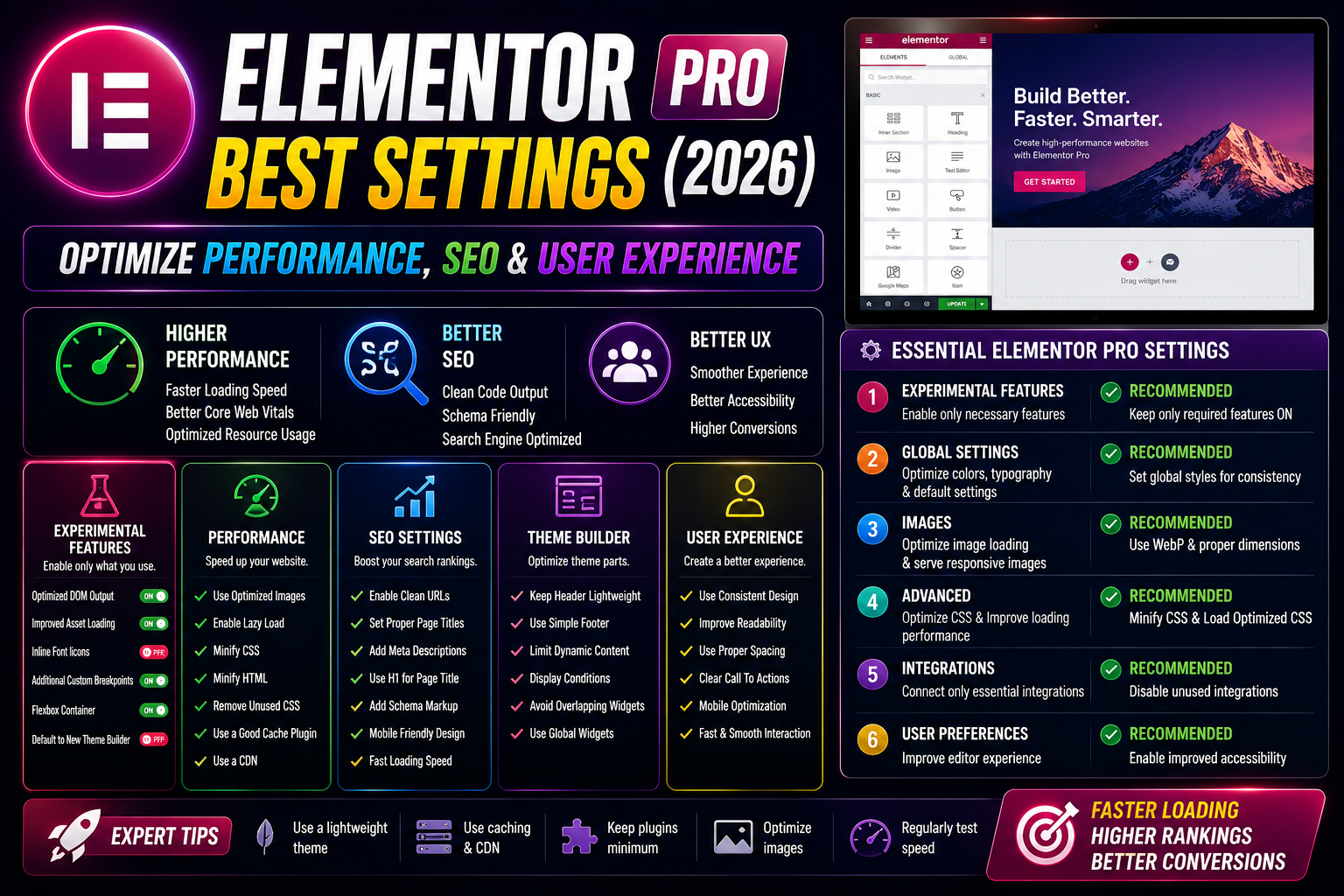
Installing Elementor Pro is only the first step. The default settings work for many websites, but they are rarely optimized for maximum speed, SEO, and long-term maintainability.
Proper configuration helps you:
- Improve page loading speed
- Reduce unnecessary CSS and JavaScript
- Maintain consistent branding
- Build responsive layouts
- Improve user experience
- Simplify future website maintenance
This guide covers the most important Elementor Pro settings you should review after installation.
Why Proper Settings Matter
Many users blame Elementor for slow websites, but performance issues are often caused by poor configuration.
Common mistakes include:
- Using inconsistent fonts and colors
- Installing too many addons
- Uploading oversized images
- Overusing animations
- Ignoring responsive layouts
- Not enabling available performance improvements
Taking time to configure Elementor correctly can make your website easier to manage and more efficient.
1. Configure Site Settings
Go to:
Elementor → Site Settings
Here you can define your global design system.
Configure:
- Global Colors
- Global Fonts
- Buttons
- Links
- Typography
- Layout Width
Using global styles keeps your website consistent and reduces repetitive editing.
2. Set Global Typography
Instead of changing fonts on every page:
Choose:
- Primary Font
- Secondary Font
- Text Font
- Accent Font
Best practices:
- Limit the number of font families.
- Use readable font sizes.
- Maintain consistent heading hierarchy.
- Avoid excessive font weights.
3. Configure Global Colors
Create a brand color palette, for example:
- Primary
- Secondary
- Accent
- Text
- Background
This allows you to update your site’s colors centrally instead of editing each page individually.
4. Use Containers Instead of Old Sections
Modern Elementor versions recommend Containers.
Advantages:
- Cleaner HTML
- Better Flexbox layouts
- Improved responsiveness
- Smaller DOM structure
- Easier alignment
For new websites, use Containers instead of the legacy Section and Column layout system.
5. Responsive Settings
Always review your pages on:
- Desktop
- Tablet
- Mobile
Adjust:
- Font sizes
- Margins
- Padding
- Alignment
- Column stacking
- Visibility
Never assume a desktop layout will automatically work well on smaller screens.
6. Performance Settings
Visit Elementor’s performance options and review available optimizations.
Depending on your Elementor version, you may find options related to:
- Improved asset loading
- Optimized markup
- Reduced DOM output
- Loading optimizations
Before enabling new optimization features on a live site, test them on a staging environment if possible.
7. Optimize Images
Images are often a larger performance bottleneck than the page builder itself.
Best practices:
- Resize images before uploading.
- Use modern image formats where supported.
- Compress images.
- Enable lazy loading if appropriate.
- Avoid uploading unnecessarily large files.
8. Reduce Animations
Animations can improve visual appeal, but excessive effects may distract visitors and increase rendering work.
Recommendations:
- Use subtle entrance animations.
- Avoid applying motion effects to every section.
- Keep scrolling effects minimal.
9. Organize Templates
Save reusable:
- Headers
- Footers
- Call-to-action sections
- Pricing tables
- Testimonials
This keeps your design consistent and reduces duplicated work.
10. WooCommerce Settings
If you run an online store:
- Maintain consistent product layouts.
- Design reusable templates.
- Test cart and checkout pages on desktop and mobile.
- Keep product pages uncluttered to improve conversions.
11. Form Settings
When creating forms:
- Keep fields to a minimum.
- Use clear labels.
- Add validation where necessary.
- Configure email notifications correctly.
- Test every form before publishing.
12. Popup Settings
Only display popups when they add value.
Avoid:
- Multiple popups on the same page.
- Immediate popups that interrupt visitors.
- Excessive animations.
Thoughtful timing and display conditions usually provide a better user experience.
Common Mistakes
Too Many Addons
Installing several Elementor addon packs may introduce overlapping widgets, increase maintenance, and affect performance.
Ignoring Global Styles
Editing fonts and colors individually leads to inconsistent design and more work later.
Large Images
Oversized images can significantly increase page load times.
Excessive Motion Effects
Animations should support the design, not overwhelm it.
No Mobile Testing
Always preview and adjust layouts for different screen sizes.
Recommended Configuration
| Setting | Recommendation |
|---|---|
| Layout | Containers |
| Fonts | Global Typography |
| Colors | Global Color Palette |
| Images | Optimized Before Upload |
| Templates | Reusable Templates |
| Responsive | Check Every Page |
| Animations | Minimal |
| Addons | Only Necessary Ones |
| Forms | Keep Simple |
| Popups | Use Strategically |
FAQs
Should I use Containers?
Yes. For most new projects, Containers are the recommended layout system.
Are Global Fonts necessary?
They are highly recommended because they improve consistency and simplify updates.
Should I enable every performance option?
Not automatically. Test changes first, especially on production websites.
How many Elementor addons should I install?
Only install the addons you genuinely need to reduce complexity and potential performance issues.
Can Elementor Pro be fast?
Yes. Combined with good hosting, optimized images, caching, and thoughtful design, Elementor Pro can power fast websites.
Conclusion
Elementor Pro offers many customization options, but the best results come from a well-planned configuration rather than enabling every feature. Establishing global styles, using Containers, optimizing media, and keeping layouts clean helps create websites that are easier to maintain and provide a better experience for visitors.
WPForms Review 2026 – Features, Pricing, Pros & Cons & Complete Review
SEOPress Review 2026 – Features, Pricing, Pros & Cons & Complete Review

All in One SEO Review 2026 – Features, Pricing, Pros & Cons & Complete Review
Yoast SEO Review 2026 – Features, Pricing, Pros & Cons & Complete Review
WPForms Review 2026 – Features, Pricing, Pros & Cons & Complete Review
SEOPress Review 2026 – Features, Pricing, Pros & Cons & Complete Review
All in One SEO Review 2026 – Features, Pricing, Pros & Cons & Complete Review