
Elementor Theme Builder Guide (2026): Complete Tutorial for Beginners & Professionals
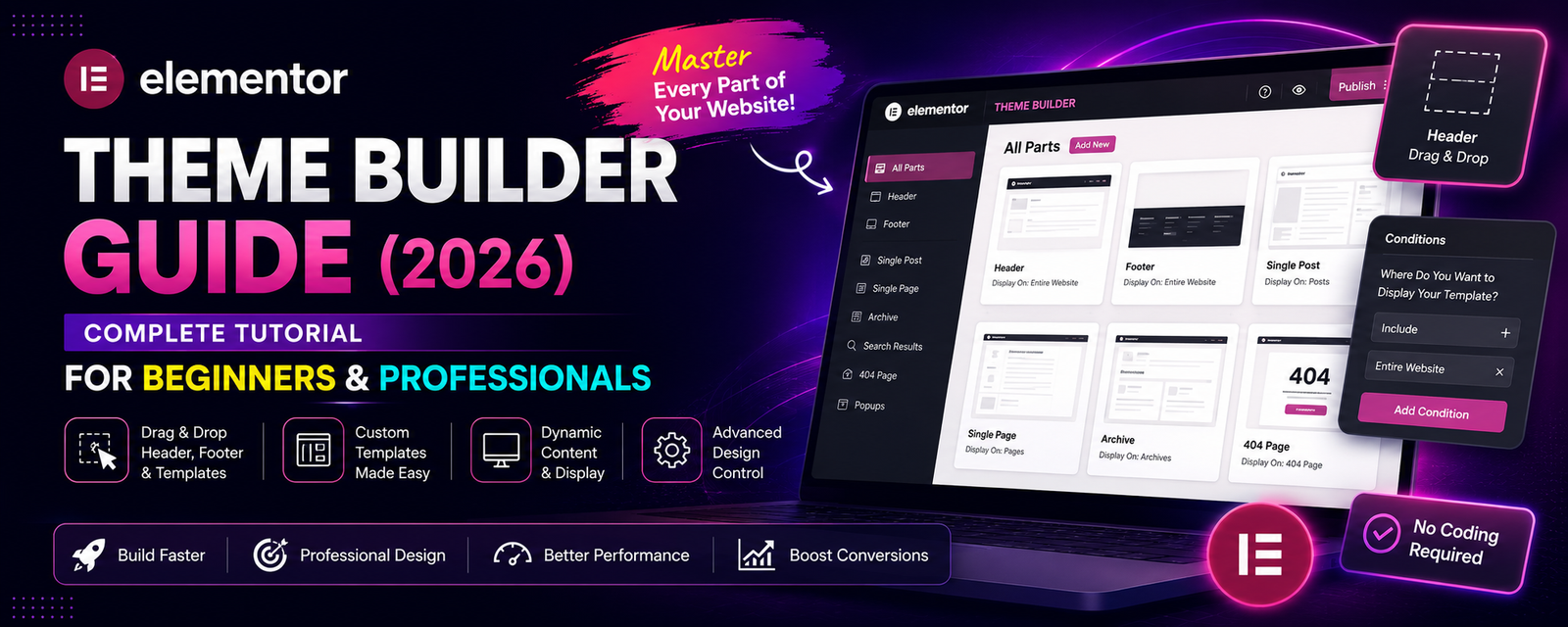
Table of Contents
- Introduction
- What is Elementor Theme Builder?
- How Theme Builder Works
- Types of Templates
- Creating a Header
- Creating a Footer
- Single Post Templates
- Archive Templates
- WooCommerce Templates
- Display Conditions
- Dynamic Content
- Best Practices
- Common Mistakes
- FAQs
- Conclusion
Introduction
One of the biggest reasons people upgrade to Elementor Pro is Theme Builder. Instead of relying on a WordPress theme’s default layout, Theme Builder lets you visually design almost every major part of your website.
You can build professional headers, footers, blog templates, WooCommerce pages, archive layouts, and even 404 pages—all without editing PHP files or writing complex code.
Whether you’re creating a personal blog, business website, or online store, Theme Builder gives you full control over your site’s design.
What is Elementor Theme Builder?
Theme Builder is a premium Elementor Pro feature that allows you to replace many default WordPress theme templates with your own custom designs.
Unlike the standard page editor, Theme Builder works across your entire website. Instead of designing one page at a time, you create reusable templates that automatically apply wherever you choose.
You can customize:
- Header
- Footer
- Single Posts
- Blog Archives
- Search Results
- 404 Page
- Custom Post Types
- WooCommerce Templates
How Theme Builder Works
Theme Builder follows a simple workflow:
- Create a new template.
- Design it using Elementor widgets.
- Add dynamic content where needed.
- Set display conditions.
- Publish the template.
Once published, Elementor automatically displays the template on the pages you’ve selected.
Types of Theme Builder Templates
Header
Controls the top section of your website.
Common elements include:
- Site Logo
- Navigation Menu
- Search Icon
- Call-to-Action Button
- Social Icons
A well-designed header improves navigation and strengthens brand identity.
Footer
The footer appears across the entire website.
Typical footer content includes:
- Copyright notice
- Contact information
- Newsletter signup
- Social media links
- Quick navigation
- Privacy Policy
- Terms & Conditions
Keep your footer clean and organized for better usability.
Elementor Pro Features Explained (2026): Complete Guide to Every Major Feature
Single Post Template
Instead of manually designing every blog post, create one template that automatically applies to all posts.
Include dynamic widgets such as:
- Post Title
- Featured Image
- Author Name
- Publish Date
- Post Content
- Categories
- Tags
- Related Posts
- Comments
This ensures consistent formatting across your blog.
Archive Template
Archive templates control pages like:
- Blog homepage
- Category archives
- Tag archives
- Author archives
- Date archives
These templates automatically update as new content is published.
Search Results Template
Customize how search results appear on your website.
You can display:
- Featured Images
- Post Titles
- Excerpts
- Read More Buttons
- Pagination
A clear search results page improves the visitor experience.
404 Page
Instead of a generic “Page Not Found” message, design a helpful 404 page.
Recommended elements:
- Friendly message
- Search box
- Homepage button
- Popular articles
- Contact link
A custom 404 page can help visitors continue browsing instead of leaving your site.
WooCommerce Templates
Elementor Pro lets you customize many WooCommerce pages.
Templates include:
- Single Product
- Shop
- Product Archive
- Cart
- Checkout
- My Account
This helps create a consistent shopping experience.
Creating a Custom Header
A typical workflow:
Step 1
Go to:
Templates → Theme Builder
Step 2
Choose:
Header
Step 3
Click:
Add New
Step 4
Select a pre-designed template or start with a blank canvas.
Step 5
Drag widgets such as:
- Logo
- Navigation Menu
- Button
- Search
- Social Icons
Step 6
Adjust:
- Colors
- Typography
- Spacing
- Mobile layout
Step 7
Publish and configure display conditions.
Elementor Pro Common Errors & Fixes (2026): Complete Troubleshooting Guide
Display Conditions
Display Conditions determine where a template appears.
Examples:
- Entire Website
- Homepage Only
- Blog Posts
- Specific Pages
- WooCommerce Products
- Categories
- Custom Post Types
- Logged-in Users (with appropriate logic or integrations)
This flexibility allows different layouts for different sections of your site.
Dynamic Content
Dynamic Content automatically pulls information from WordPress instead of requiring manual updates.
Examples:
- Post Title
- Featured Image
- Author
- Publish Date
- Categories
- Custom Fields
- Product Price
- Product Image
Dynamic widgets are especially useful for blogs, portfolios, directories, and eCommerce sites.
Theme Builder Best Practices
✔ Use Global Fonts.
✔ Use Global Colors.
✔ Keep headers simple.
✔ Design mobile-first.
✔ Use reusable templates.
✔ Test display conditions carefully.
✔ Preview templates before publishing.
✔ Back up your website before making major template changes.
Elementor Pro vs Gutenberg (2026): Which WordPress Editor Should You Choose?
Common Mistakes
Designing Everything From Scratch
If Elementor provides a suitable template, use it as a starting point to save time.
Ignoring Mobile Design
Always optimize headers, menus, and spacing for smaller screens.
Incorrect Display Conditions
Review your display rules carefully to avoid applying templates to unintended areas.
Overcomplicated Headers
Too many navigation items, icons, or buttons can make the header difficult to use.
Forgetting Dynamic Widgets
Dynamic widgets help keep templates consistent and automatically updated.
Advantages of Theme Builder
- Full website customization
- No coding required
- Reusable templates
- Dynamic content support
- WooCommerce integration
- Consistent branding
- Faster website development
- Easier long-term maintenance
Frequently Asked Questions
Do I need coding knowledge?
No. Theme Builder is designed for visual editing without requiring PHP or CSS, although custom code can be added for advanced customization.
Can Theme Builder replace my WordPress theme?
Theme Builder customizes many theme templates, but you’ll still need an installed WordPress theme that is compatible with Elementor.
Can I create different headers for different pages?
Yes. Display Conditions allow you to assign different headers to specific pages, post types, categories, or other parts of your website.
Does Theme Builder work with WooCommerce?
Yes. Elementor Pro includes WooCommerce template support for many key store pages.
Is Theme Builder beginner-friendly?
Yes. While it offers advanced capabilities, the drag-and-drop interface makes it accessible to beginners after a short learning period.
Conclusion
Elementor Theme Builder is one of the platform’s most powerful features, enabling you to design and manage key parts of your WordPress website from a single visual interface. By combining reusable templates, dynamic content, and flexible display conditions, you can create a professional, consistent website that’s easier to maintain as it grows.
WPForms Review 2026 – Features, Pricing, Pros & Cons & Complete Review
SEOPress Review 2026 – Features, Pricing, Pros & Cons & Complete Review

All in One SEO Review 2026 – Features, Pricing, Pros & Cons & Complete Review

Yoast SEO Review 2026 – Features, Pricing, Pros & Cons & Complete Review
WPForms Review 2026 – Features, Pricing, Pros & Cons & Complete Review
SEOPress Review 2026 – Features, Pricing, Pros & Cons & Complete Review
All in One SEO Review 2026 – Features, Pricing, Pros & Cons & Complete Review